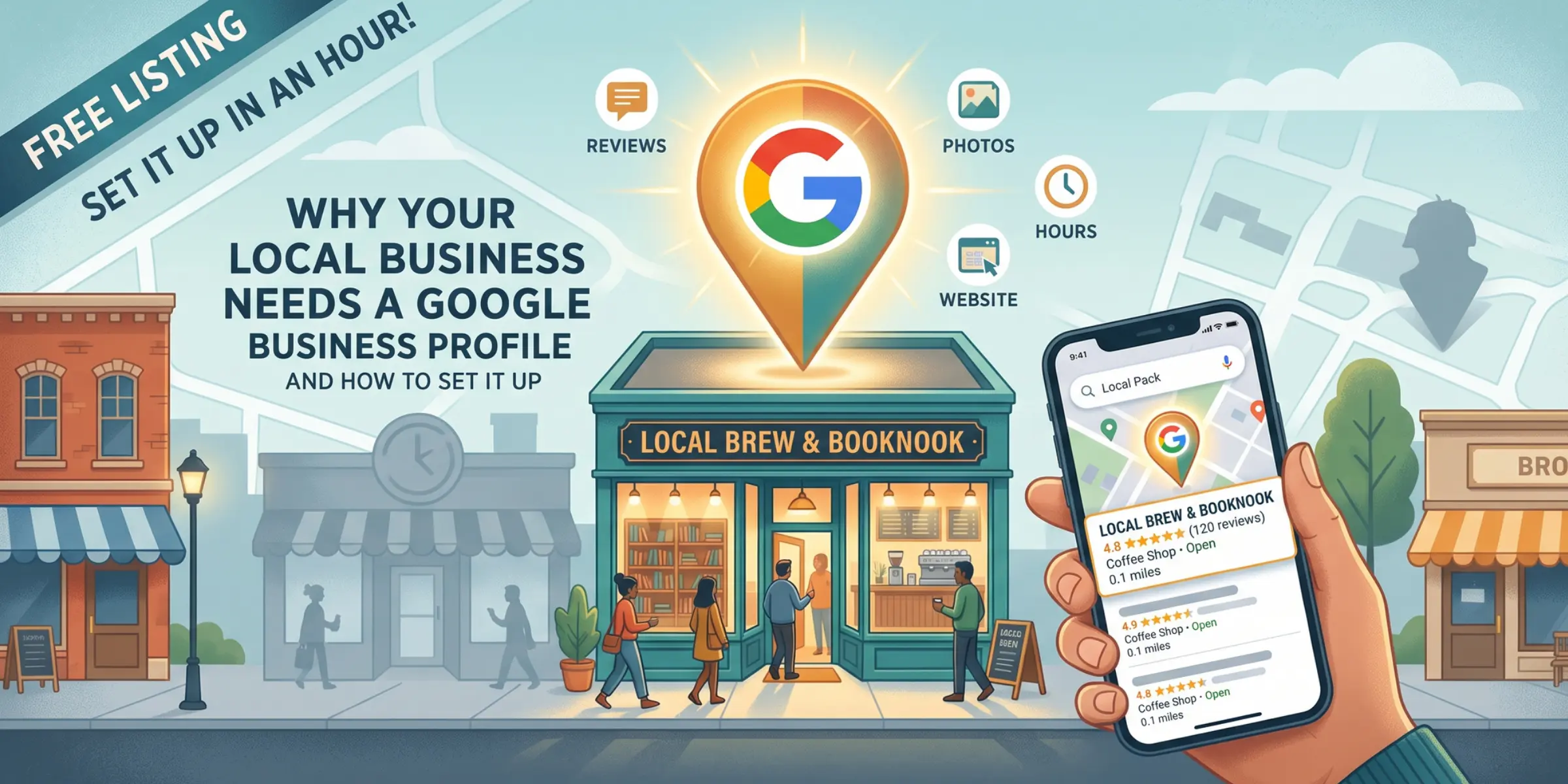
Most people looking for a local service type something into Google, look at the map, and pick one of the first three businesses they see. If your business is not on that map, you are invisible to them.
A Google Business Profile (GBP) is what puts you there. It is free. It takes about an hour to set up properly. Yet BrightLocal research found that only 35% of small businesses have a GBP.
That gap is your opportunity. Here is what a profile does, why it matters more than ever, and how to set yours up the right way.
What Is a Google Business Profile?
A Google Business Profile is your free listing on Google. It shows your business in Google Search and Google Maps.
People used to call it Google My Business. Google renamed it in 2021. The old name still sticks around in conversation.
Your profile holds the basics customers want:
- Your business name, address, and phone number
- Your hours, including holiday hours
- A link to your website
- Your services and products
- Photos of your work, your team, and your space
- Your customer reviews and your replies
- Questions from customers and your answers
Where Your Profile Shows Up
Your profile appears in three main places.
The local pack. This is the map with three business listings under it. It sits near the top of the search results page.
Google Maps. People search Maps directly when they want something nearby.
The knowledge panel. When someone searches your business by name, your profile fills the right side of the screen.
Why Your Local Business Needs One
It Puts You on the Map
The local pack sits above most of the regular search results. Three businesses get that spot. Everyone else waits below.
You cannot buy your way into the local pack with SEO alone. You need a verified Google Business Profile to appear there at all.
It Is Where Your Reviews Live
Reviews decide who gets the call. BrightLocal’s 2026 Local Consumer Review Survey found that 97% of consumers read reviews for local businesses.
The urgency is climbing. In that same survey, 41% of consumers said they always read reviews before choosing. A year earlier, only 29% said the same.
Google is still the biggest review platform by a wide margin. It sits at 71% of consumers, down from 83% the year before.
That survey polled American consumers. Canadian buying habits follow the same pattern.
AI Tools Now Read Your Profile
This is the change most business owners have not caught yet.
BrightLocal found that use of AI tools like ChatGPT for local recommendations jumped from 6% to 45% in one year. AI is now the third most common way people find local businesses.
These tools pull from the same places Google does. Your profile, your reviews, and your website all feed them. An incomplete profile means the AI has nothing useful to say about you.
It Costs Nothing
You pay Google nothing for a Business Profile. You do not need a website to create one, though you should have one.
For a small local business, few things return more for less effort.
Most of Your Competitors Do It Badly
Plenty of businesses claim a profile and then abandon it. Wrong hours. Three photos from 2019. No replies to reviews. No services listed.
You do not need to outspend anyone. You just need to finish what your competitors started.
How Google Decides Which Businesses Show Up
Google explains its local ranking in plain terms. Three things drive it.
Relevance. How well your profile matches what someone searched for. You control this with your categories, your services, and your description.
Distance. How far you sit from the searcher. You cannot change this directly. You can make sure Google knows exactly where you operate.
Prominence. How well known and trusted your business appears online. Reviews, mentions, links, and your website all feed this.
You can improve two of the three. Relevance and prominence are where your effort pays off.
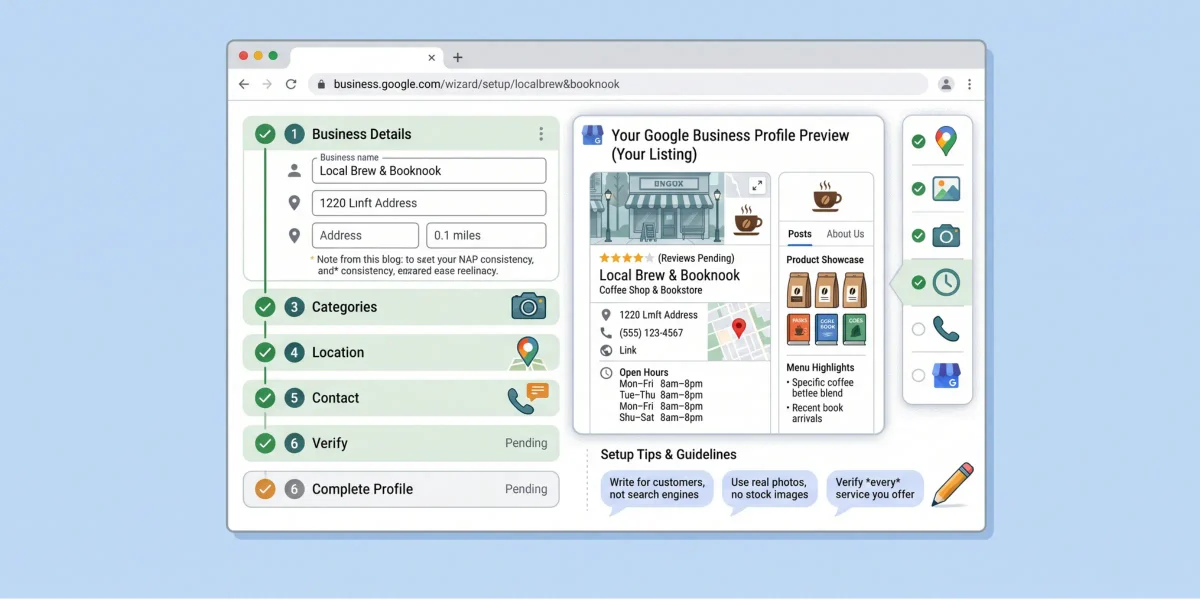
How to Set Up Your Google Business Profile
Work through these steps in order. Do not rush the early ones. Fixing a mistake later can trigger a re-verification you did not want.
Step 1: Lock Down Your Business Details
Write down three things before you touch Google:
- Your exact business name
- Your address, or your service area if you travel to customers
- Your main business phone number
Use the same name, address, and phone number everywhere online. Your website, your Facebook page, and your directory listings should all match. SEO people call this NAP consistency.
Use your real business name only. Do not add keywords or your city to it. Google treats that as spam and can suspend you for it.
Step 2: Create or Claim Your Profile
Search your business name in Google first. Someone may have created a listing already. Customers can add businesses, and so can data providers.
If a listing exists, claim it. Do not build a second one. Duplicate profiles cause ranking problems and suspensions.
If nothing exists, add your business at business.google.com.
Use a Google account that belongs to the business owner. Do not use a staff member’s personal Gmail. People leave, and you lose access to your own profile.
Step 3: Choose Your Primary Category
Your primary category is the single biggest lever on your profile. It tells Google what you actually do.
Pick the narrowest category that describes your main service. A specific category beats a broad one.
Add secondary categories for your other services. Keep the list honest. Categories you do not serve will hurt your relevance.
Step 4: Set Your Address or Your Service Area
This step depends on how you serve customers.
If customers visit you, enter your street address. Keep it visible.
If you travel to customers, you are a service area business. Google says you should clear your address and show service areas instead. This applies to plumbers, electricians, mobile groomers, and anyone working from home.
Google keeps your address on file for verification. The public does not see it.
Keep your service areas realistic. Google says your total service area should not stretch farther than about two hours of driving from your base. Listing every town in southern Ontario will not help you.
For a Durham Region business, that might mean Oshawa, Whitby, Ajax, Pickering, Bowmanville, and Courtice. Pick the places you genuinely serve.
You cannot use a PO box or a mailbox rental. You also cannot list an office that nobody staffs during your posted hours. Google suspends profiles for both.
Step 5: Add Your Contact Details and Website
Enter your main business phone number. Use a number a real person answers.
Add your website URL. Link to a page that matches the search, not always your homepage. A plumber’s profile can point to a service page for the work customers search for most.
If you do not have a website yet, get one. Your profile and your site support each other.
Step 6: Verify Your Business
Verification proves you own the business. Without it, your profile stays limited and hard to find.
Google picks your verification method. You do not get to choose it. Google decides based on your business type, your region, your hours, and public information about you.
The possible methods include:
- Video recording. You record a walkthrough of your business. Google reviews it.
- Live video call. A support agent joins a video call and asks you to show your location.
- Phone or text. Google sends a code to your business number.
- Email. Google sends a code to an email address it recognizes.
- Mail. Google mails a postcard with a code. Most codes arrive within 14 days.
- Instant verification. Google may verify you right away if you already own the website in Search Console.
Google reviews your submission and can take up to five business days.
While you wait for a mailed code, change nothing. Do not edit your business name, address, or category. Any of those edits kills the code. Do not request a second code either.
Never share your verification code. Google will never ask you for it. Anyone who does is trying to steal your listing.
Step 7: Fill In Every Remaining Field
An empty field is a missed chance to match a search. Complete all of them.
- Hours. Add regular hours and special holiday hours. Canada Day, Family Day, and Victoria Day catch a lot of businesses out.
- Business description. You get 750 characters. Explain what you do, who you serve, and where. Write for customers, not for search engines.
- Services. List every service you offer as its own entry. Add a short description to each one.
- Products. Retailers and some service businesses can list products with photos and prices.
- Attributes. These are checkboxes like wheelchair accessible, free parking, or online appointments.
- Opening date. Add the year you started. It supports your credibility.
- Booking or appointment link. Add one if you take bookings online.
Step 8: Add Real Photos
Photos do more work than most owners expect. They are often the first thing a customer looks at.
Use your own photos. Skip the stock images. People recognize a stock photo instantly and trust it less.
Add these at minimum:
- Your logo
- A cover photo
- The outside of your building, if customers visit
- The inside of your space
- Your team
- Your finished work
Take photos with your phone. Modern phone cameras are more than good enough. Add new ones every month or two.
How to Pass Video Verification
Video verification trips up more business owners than any other step. Google steers many new profiles toward it.
You do not need special gear. A smartphone works fine.
Record one continuous clip. Do not stop, cut, or edit. Google wants to see an unbroken take.
Show these three things in the video:
Where you are. Film your exterior sign, a nearby street sign, or a neighbouring business. Google needs to place you.
What you do. Show your products, your branded equipment, your tools, or your marketing materials.
That you run the business. Open the door with your keys. Show a staff-only area, your storage room, or your point of sale. Non-sensitive business paperwork also works.
Service area businesses can show a branded vehicle, tools of the trade, invoices, and business cards.
If Google rejects your video, you will see a “Review issues” notice on your profile. Select it and follow the steps to try again.
What to Do After You Verify
Setup is the start, not the finish. Google rewards active profiles.
Ask for Reviews and Reply to Every One
Ask every happy customer. Send a direct link to your review form so nobody has to hunt for it.
Old reviews lose their power. BrightLocal’s research shows customers care about how recent your reviews are. A steady trickle beats a burst of twenty in one week.
Reply to every review, good and bad. A calm, professional reply to a negative review often does more for you than the five star ones.
Never buy reviews. Never write your own. Google removes them, and Canadian consumer protection rules take a dim view of fake reviews.
Post Updates
Google Posts let you share offers, events, and news on your profile.
Posts do not directly move your ranking. They do improve how many people click, call, and visit. Post every week or two if you can.
Keep Your Hours Accurate
Nothing frustrates a customer more than driving to a closed business. Update your hours whenever they change. Set holiday hours in advance.
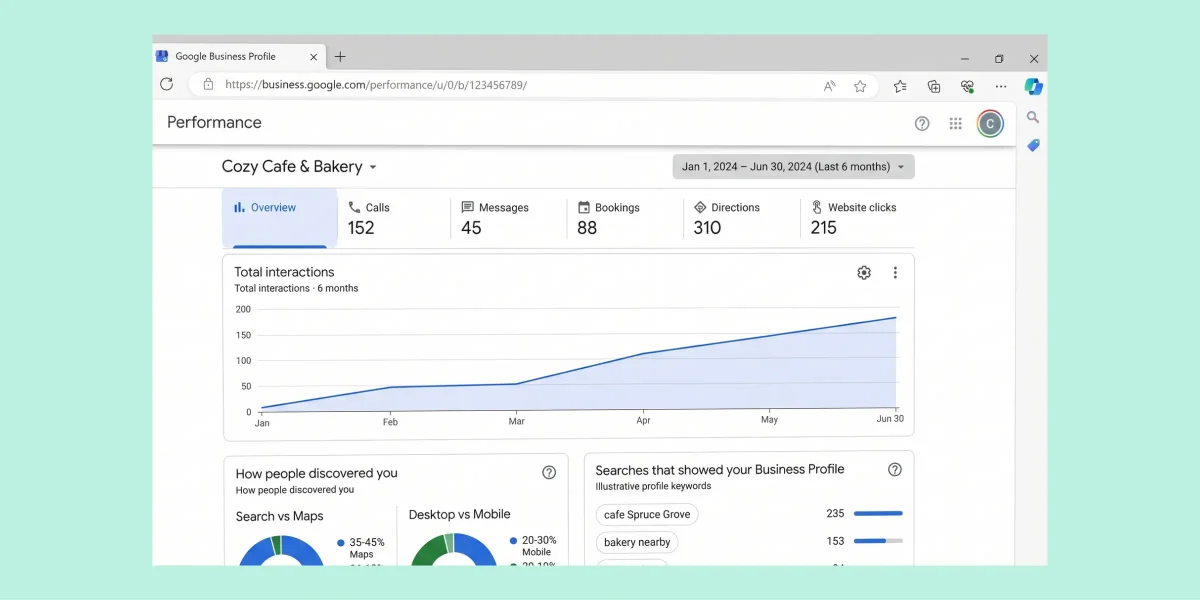
Check Your Performance Report
Google shows you how people found you and what they did next. You can see:
- The searches that surfaced your profile
- Calls from your listing
- Direction requests
- Clicks through to your website
Look at this monthly. The search terms tell you what your customers actually call your services.
Mistakes That Get Profiles Suspended
Google suspends profiles quickly and explains itself slowly. Avoid these.
- Keywords in your business name. “Oshawa Plumbing Emergency Drain Repair” is not your legal name. Use the real one.
- A PO box or virtual office address. Google rejects both.
- An unstaffed office. Somebody must be there during your posted hours.
- A visible home address for a service area business. Clear it and use service areas.
- One profile per city you serve. You get one profile per real, staffed location. Extra profiles for extra cities are spam.
- Frequent edits to core fields. Changing your name, address, or category can trigger a re-verification. Get them right the first time.
Two Features Google Removed
Google shut down Business Profile chat and call history on 31 July 2024. Customers can no longer message you through your listing. You can no longer pull a call log from your profile.
Some old guides still tell you to turn on messaging. Ignore that advice. It no longer exists.
Make sure your phone number, your website link, and a contact form on your site all work well. Those carry the load now.
Your Profile and Your Website Work Together
A Google Business Profile is not a replacement for a website. The two feed each other.
Google checks your website to confirm what your profile claims. Matching details build trust. Mismatched details cost you.
Line these up:
- Your name, address, and phone number match exactly on both
- Your website has a page for each service listed on your profile
- Your service pages name the towns you actually serve
- Your contact page shows the same hours as your profile
If your website contradicts your profile, you make Google guess. Google guesses in favour of businesses that make it easy.
You can read more about the pages your site needs in our guide to the 9 pages every small business website needs.
Common Questions
Do I need a website to have a Google Business Profile?
No. You can create and verify a profile without one. You will rank better and convert more visitors with a website behind it.
How long does verification take?
Google reviews your submission for up to five business days. Mailed postcards add up to 14 days on top of that.
Can I choose my verification method?
No. Google assigns it. If your profile offers more than one option, you can try another.
Can I choose my verification method?
No. Google assigns it. If your profile offers more than one option, you can try another.
Can I have more than one profile?
You get one profile per real business location. A second location with its own staff and its own service area gets its own profile.
Should I hide my home address?
Yes, if you travel to your customers instead of your customers coming to you, you should hide your address and set a service area instead.
How often should I update my profile?
Check your profile weekly. Make sure your hours are correct and respond to reviews. Add new photos monthly, and post updates every week or two.
Will a Google Business Profile get me to the top of Google?
No, but it helps. Ranking still depends on relevance, distance, and prominence. A strong profile plus a strong website beats either one alone.
Get Your Profile Working for You
A Google Business Profile is the cheapest marketing your local business will ever run. It also rewards the people who finish the job.
- Set it up properly.
- Verify it.
- Fill in every field.
- Ask for reviews and reply to them.
- Keep it current.
If you would rather hand it off, we set up and manage Google Business Profiles for businesses across Durham Region.
Take a look at our local SEO services, or get in touch for a straight answer about where your profile stands today.

Larry is a local web designer located in Oshawa, Ontario. He specializes in building WordPress websites for service-based businesses in Durham Region, and is committed to helping his clients outrank their competition.